v1.0.11.0 is here: six tools, one workspace.See what's new →

What's New · 1.0.0 · 2026-10-23

1.0: six tools,
One workspace

This version connects what you make across the tools — easy to find, easy to carry on, yours to take with you. It is organized by theme below; the full list is in the app under "Settings → Help & Terms → What's new in 1.0".

THEME 01

One workspace

A new Home, the Library and the command palette join the six tools into a single workflow.

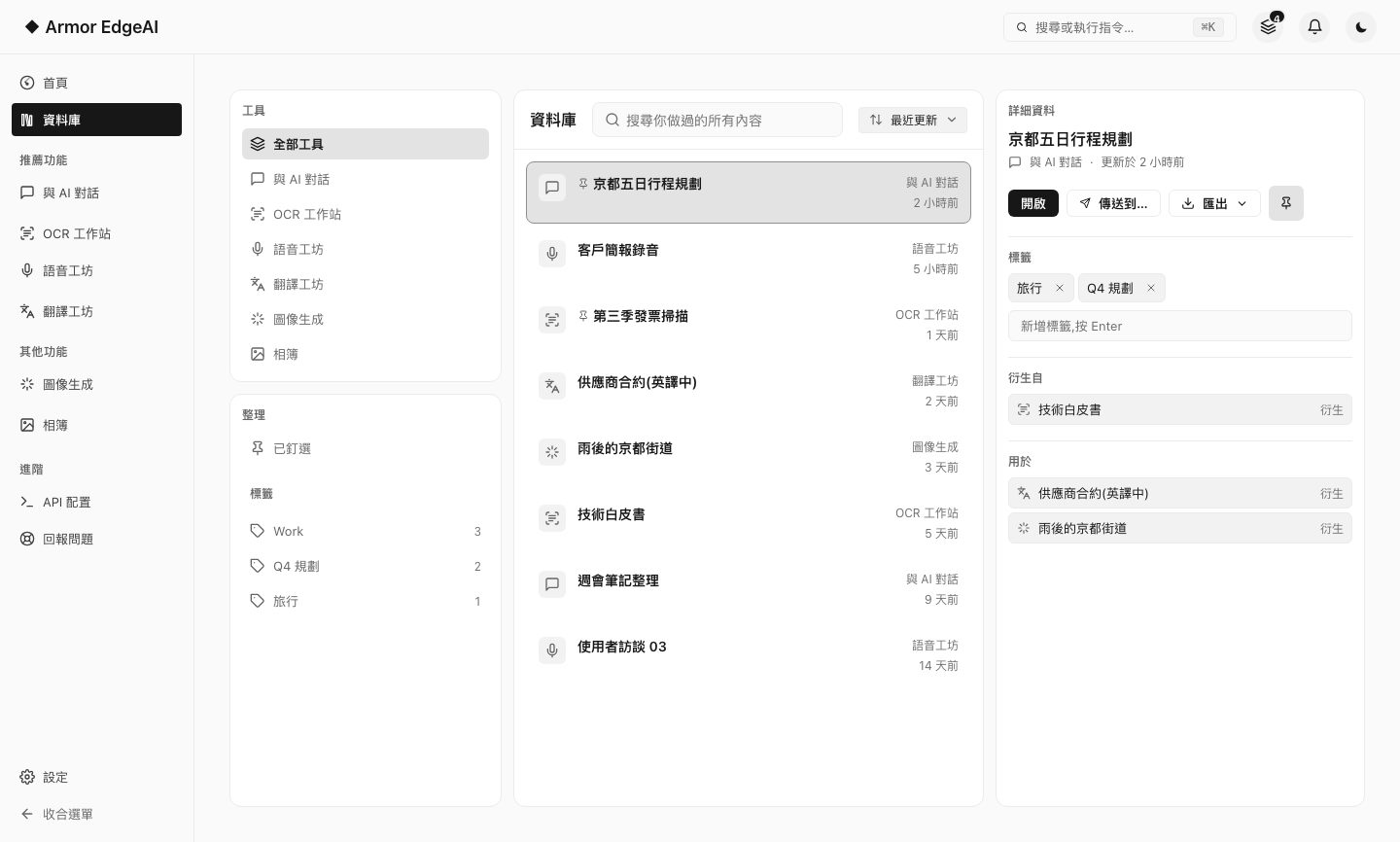
Armor EdgeAI 1.0 — Library
The Library in Armor EdgeAI 1.0 — what you made in every tool listed on one page, with open, send and export in the right-hand panel
  • Home picks up where you left offHome shows where you left off and the work in progress; drop a file on it, then choose which tool should handle it.
  • LibraryOne place to list and search what you have made in every tool; pin, tag and export items, and see where each one came from.
  • Send to another toolTranscripts, recognized text, photos and chat replies can go straight to another tool to carry on, with their source shown.
  • Command palettePress Ctrl+K to search for a feature or jump to any workstation; as you type it also finds things you have made.

THEME 02

Meetings, from recording to minutes

Speech Studio gains live transcription and speaker separation, and insight reports now know who said what.

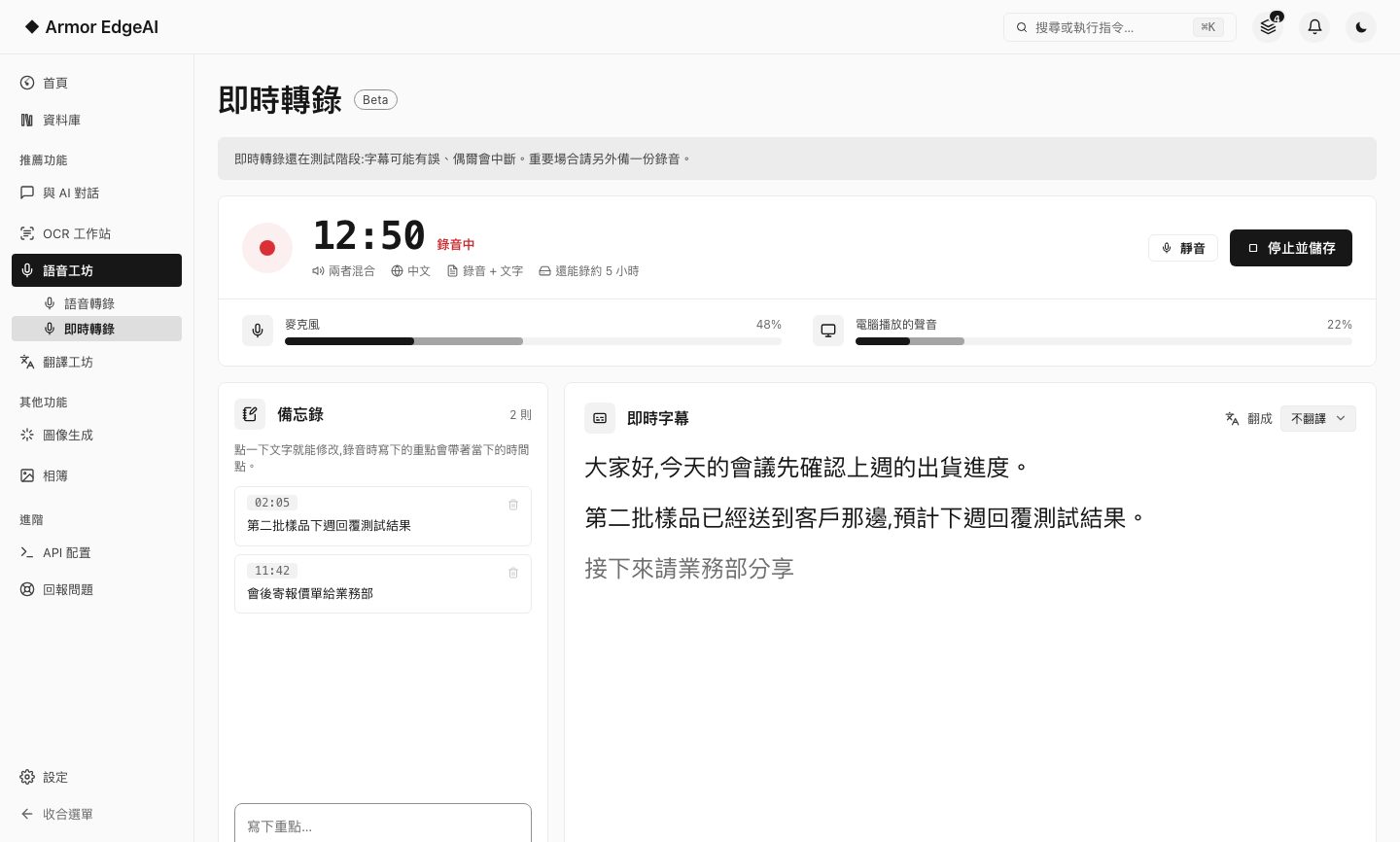
Armor EdgeAI 1.0 — Live Transcription
Live transcription in Armor EdgeAI 1.0 — live captions and notes while recording
  • Live transcription (Beta)See captions as you record, capturing the microphone and what the computer plays at the same time; write notes while recording, and get a full transcript when you stop.
  • Speaker separationTranscription works out who is speaking automatically; rename or merge speakers, and exports and insight reports carry the speakers along.
  • Insight reports that understand the contentThe report first works out the kind of content (meeting, interview, lecture…) and then organizes it into sections that fit; action items show who owns them.
  • Confirmed before every sessionEach time you start live transcription, you are asked to confirm that everyone taking part has agreed; it cannot be skipped.

THEME 03

Connect this computer to your tools

The API Configuration page has been reorganized, local network access gains keys and usage, and there is a new connection for AI agents.

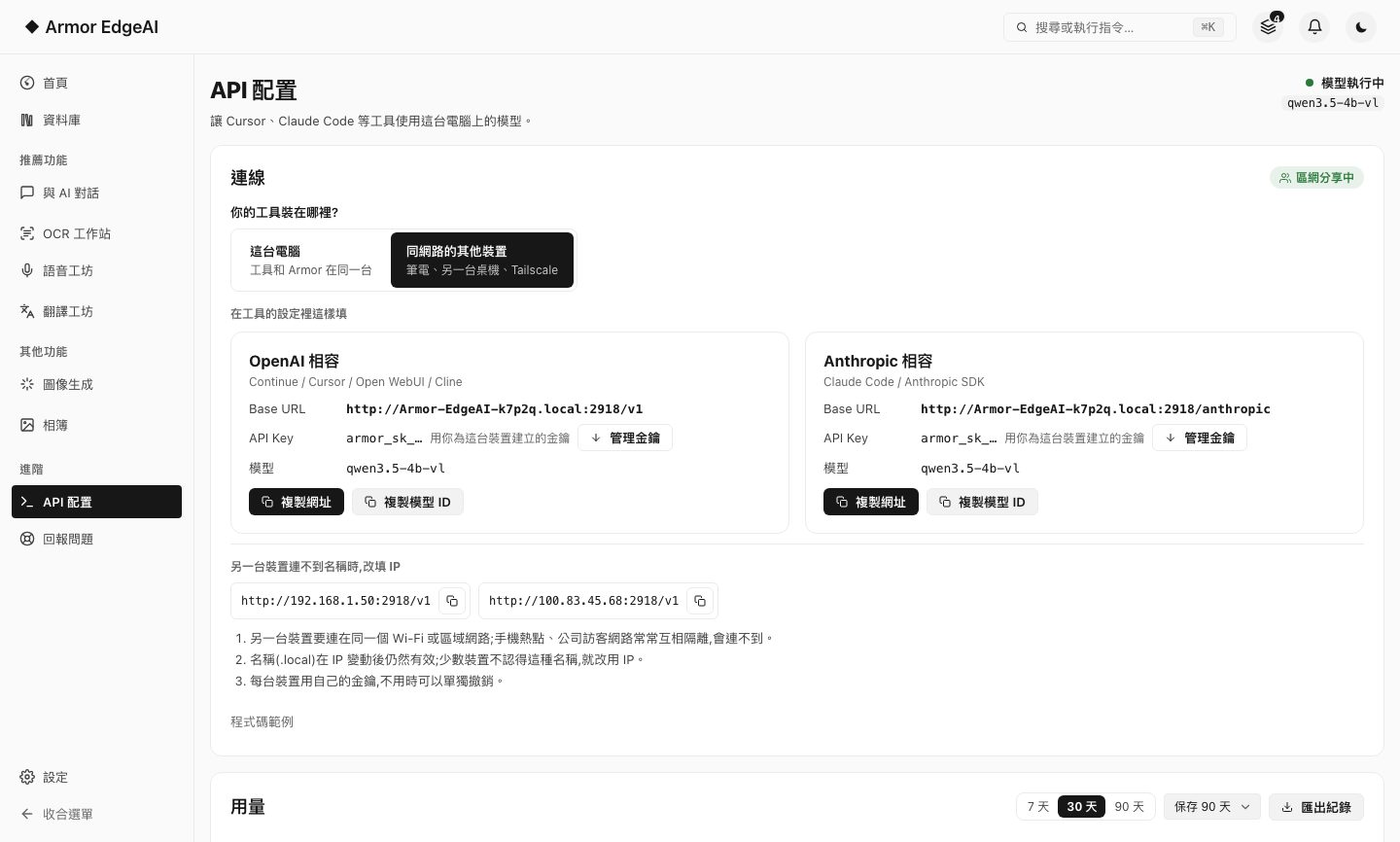
Armor EdgeAI 1.0 — API Settings
The API Configuration page in Armor EdgeAI 1.0 — connection details, API keys and usage
  • Connection details on one cardOnce a model is running, the API Configuration page lists the URL and model ID to enter in your tool.
  • API keysWith local network access on, other devices need a key you create to make calls; programs on this computer need no key.
  • Usage panelThe same page shows each caller's use over the last 30 days, with a daily breakdown.
  • AI agent connectionsLet AI tools you trust use text recognition and speech transcription through this computer; off by default, and each connection can be revoked at any time.

THEME 04

Translation you can hand off

From "it translates" to "it's ready to hand over": checks, glossaries and subtitles are now in place.

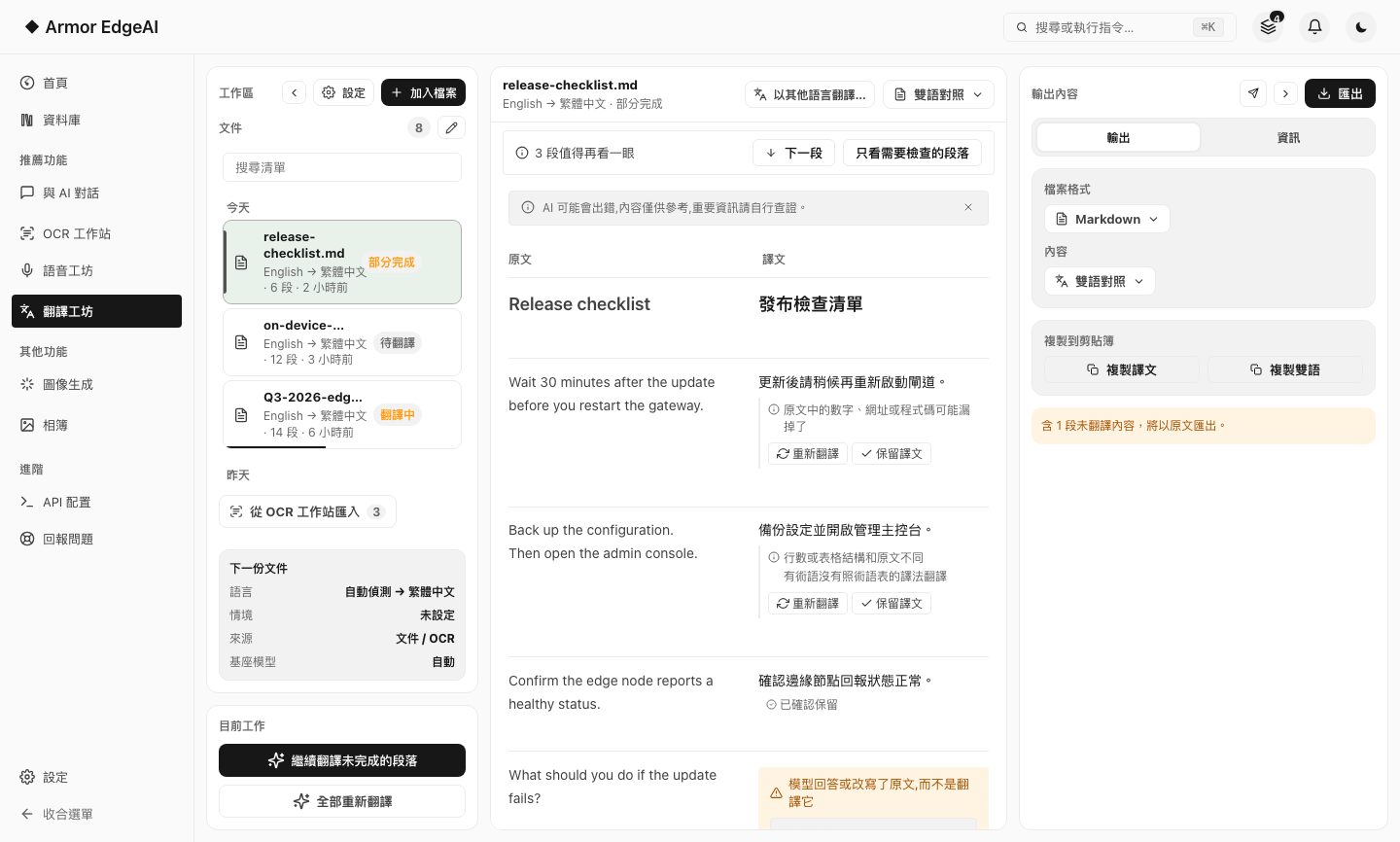
Armor EdgeAI 1.0 — Translation Studio
Translation Studio in Armor EdgeAI 1.0 — segments worth a second look are flagged
  • Worth a second lookWhen translation finishes, segments that may have a problem are flagged with the reason; show only those and check them one by one.
  • More sourcesPaste text in and translate it; PDFs and images have their text recognized first, then translated; the source language is detected automatically.
  • GlossariesManage glossaries in Settings, choose one for a translation, or add a term right from a segment.
  • Bilingual subtitles and WordTranscript translations keep their timing and speakers and export as SRT / VTT bilingual subtitles; documents export as Word.

THEME 05

Your data goes where you go

Your data has always stayed on your computer; 1.0 lets you see where it is and how much space it takes, and take all of it with you.

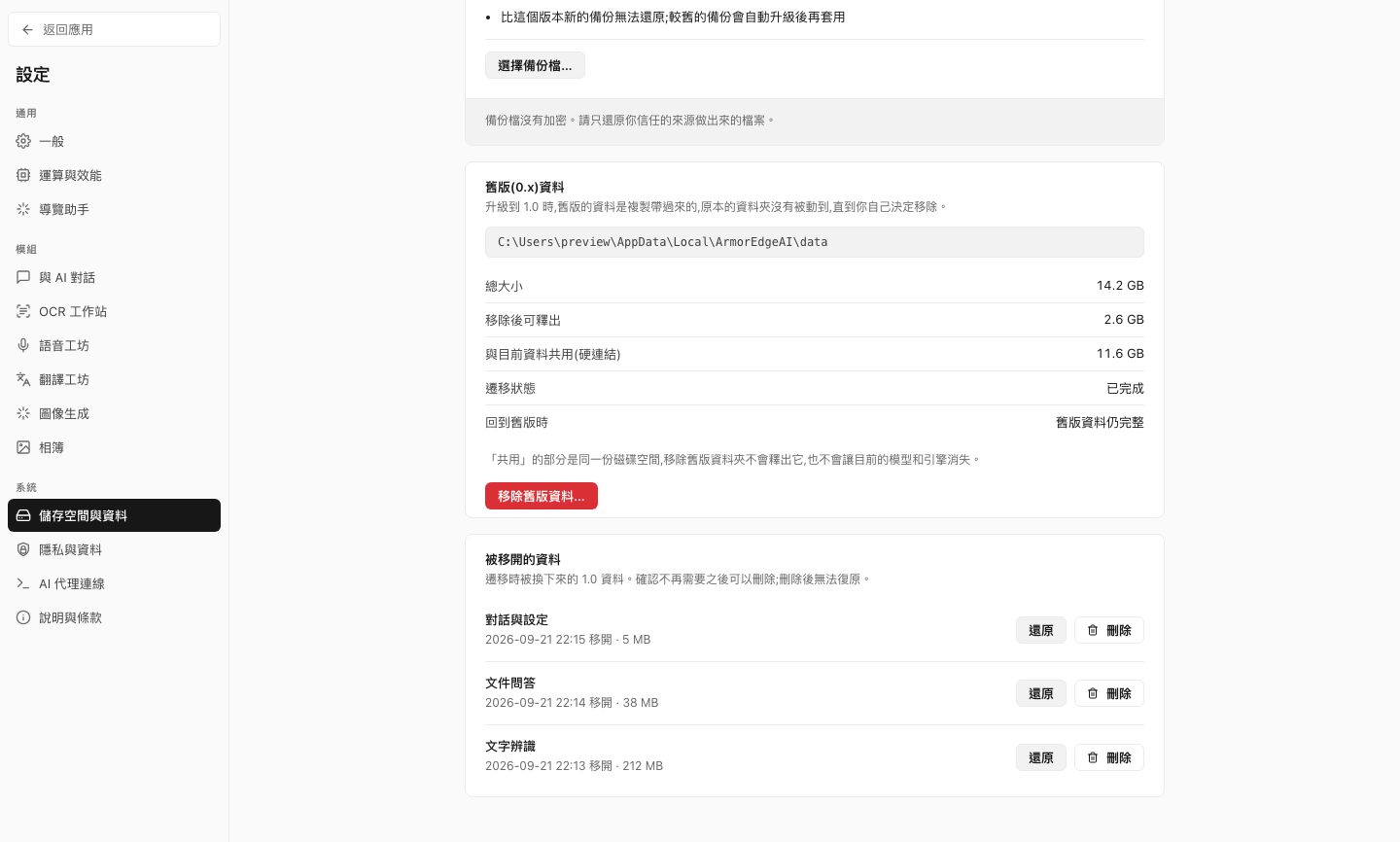
Armor EdgeAI 1.0 — Storage and data
The "Storage and data" settings page in Armor EdgeAI 1.0
  • Your earlier data comes alongWhen you upgrade from an earlier version, your chats, settings and each tool's records move into the new version automatically, with progress shown.
  • Back up and restorePack your chats, settings and each tool's records into one file to keep yourself; when you need to, restore everything from the backup file.
  • Storage and dataA new settings category: where your data is kept, how much space each kind takes, and a way to clear temporary files that can be rebuilt.
  • Recently deletedDeleted chats can be restored for 30 days, or deleted for good sooner.

Every Tool

More in every tool

Improvements that fit none of the themes above, but that you will use every day.

AI Chat
  • Chat and Image now use the same three-column layout as the other tools
  • Long chats bring back earlier parts relevant to your question
  • Attached images stay in the chat, so you still see them when you reopen it
  • Chat attachments can read PowerPoint and Excel directly
Speech Studio
  • Upload several files at once and they queue for transcription automatically
  • Apply your term correction list to the whole transcript at once, with undo
  • A real audio waveform, and insight reports that jump back to that moment of the recording
  • Send one or several transcript segments straight to chat or translation
Document Recognition
  • Reads PowerPoint and Excel files directly
  • Recognize every document at once, or have recognition start as soon as you upload
  • Re-recognize a chosen block, or correct a whole page's text directly
  • Full-text view and in-page search
Translation Studio
  • Drop in several files at once and they queue for translation automatically
  • Translate a finished document again into another language
  • Copy the translation, or the original and translation together, in one click
Image Generation
  • Enhancement is now a mode of the image workstation, with results saved to your gallery automatically
  • Send a gallery image straight to enhancement or image-to-image
  • Make another image with the same settings
  • Remove models you no longer use from inside the app
Smart Photos
  • Organize people: name, merge, split or hide them, and undo any action
  • Browse by where photos were taken, worked out entirely on this computer
  • Timeline: browse month by month
  • Rescan a folder to pick up added and changed photos

Good To Know

Before you start

01

Live transcription is still being tested

Live captions favor speed, so they may contain mistakes or stop now and then; the transcript made after you stop is more accurate. For anything important, keep a separate recording.

02

Some features need a separate component download

The first time you use speaker separation or live captions, an engine and models have to be downloaded (the engine is about 20 MB; the models are about 100 MB and 740 MB respectively), and the engine is downloaded directly from GitHub until our own download service offers it. A connection is made only when you click download, and the download contains none of your data.

03

Local network connections are unencrypted

Local network access and AI agent connections over the local network both use unencrypted HTTP; turn them on only on networks you trust, and never expose them to the public internet.

04

Restoring replaces everything

Restoring from a backup replaces all current data with the backup file — it does not merge; API keys and AI agent connections are not part of the backup.

Upgrade

Already on 0.x

Version 0.63.7 updates to 1.0 right inside the app; your chats, settings and each tool's records move into the new version automatically. Older versions install over the top with the installer.

0.63.7In-app update1.0.0
< 0.63.7Install over1.0.0
See upgrade steps →

Next

Download 1.0 and start from Home

The installer is about 200 MB; if you are already on an earlier version, your data comes along automatically.